Why we built it
CreatorNotes works the way you think. You create a canvas when you want to explore an idea, dump research, plan a sprint, or shape a strategy.
After a few weeks of real use, the sidebar fills up. Strategy canvases, research dumps, sprint notes, all on the same flat list. You start scrolling, hunting, half-remembering the name of a canvas you started two months ago.
The product quietly becomes less useful the more you invest in it. That is the failure mode we wanted to head off, before any of our users hit it.
What it does
Automatic clustering
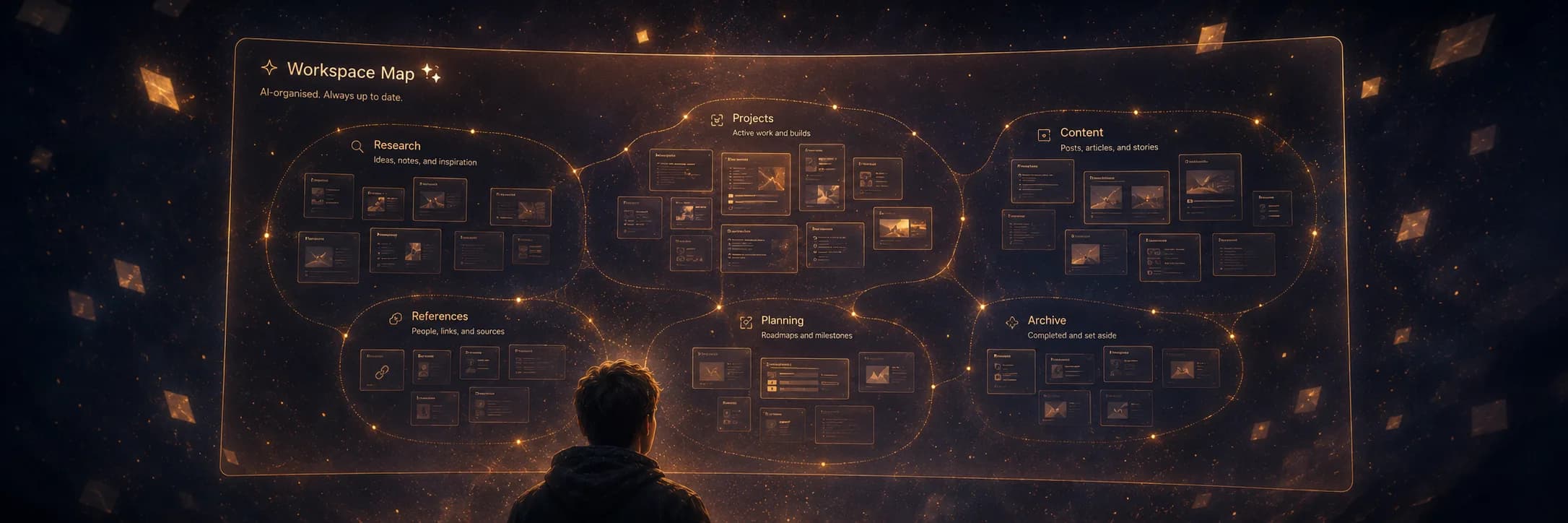
Workspace Map appears in your sidebar once your workspace has more than one canvas. It lays out every canvas you have made as a clickable tile, grouped by topic, with cluster names written by AI. No tagging, no folders, no manual grouping. The structure shows up before you ask for it.
Self-maintaining
The Map watches for changes that would affect what it should show. Add a new canvas, archive one, change the stated purpose of one. The Map queues itself for a refresh and is up to date again within seconds. You never click anything.
Read-only by design
You cannot drag, rename, or delete things on the Map. The whole canvas is owned by AI. Two buttons in the header replace the usual edit tools. Refresh forces an update right now. Reset rebuilds the layout from scratch. Nothing else.
A sparkle in the sidebar
AI-managed canvases get a small sparkle icon next to their name in the sidebar so you can tell at a glance which canvases you own and which the system owns.
What signals trigger a refresh
The Map listens for the kinds of workspace changes that change what it should show:
- A new canvas appears in the workspace.
- A canvas is archived or unarchived.
- A canvas's stated purpose (its goal or target audience) changes.
What it deliberately ignores: small note-level edits and canvas renames. Note edits already flow into the per-canvas AI summary, which the Map reads on its next run. Renames update the tile label live, with no refresh needed. Skipping those keeps the Map calm; it does not thrash while you are actively writing.
When a real signal does land, multiple rapid changes coalesce. The Map regenerates once after the dust settles, not on every keystroke.
How the AI decides
When the Map regenerates, the AI is given one focused question: how should these canvases be grouped? It sees each canvas's name, stated purpose, and AI-written summary, and returns a short list of named clusters with their members.
That is all the AI does. It does not decide where the tiles go on screen, what colour they are, or how the canvas is shaped. Those are handled by the regular canvas auto-layout, which takes the cluster plan and arranges everything cleanly.
The split matters. AI handles meaning. Code handles placement. The result is fast, cheap, deterministic, and predictable. There is also a no-op guard: if nothing meaningful has changed since the last run, the AI call is skipped entirely.
What we deliberately left out
A few things we chose not to build in v1. The simpler version covers what people actually need today, and the extra surface area would have cost more than it gave back.
- · User-authored AI canvases. You cannot define your own AI-managed canvas yet. Workspace Map is the only kind, for now.
- · Custom per-canvas instructions. The Map's job is fixed. We will add custom briefs once we have a clear pattern for them.
- · Diff-based layout updates. Every regeneration rewrites the canvas from scratch. The no-op guard skips the redundant runs; the actual updates are full sweeps.
Where this is going
Workspace Map is the first example of a bigger idea: parts of your workspace that an AI keeps current for you, in the background, while you focus on the work itself.
We have a list of next surfaces. Topic-specific overviews. Recent-focus boards. AI-curated reading lists. A “what changed this week” canvas you can open on a Monday. We want to hear yours.
The success metric
We will know we got this right when users stop scrolling their sidebar to find what they are looking for, and when “where did I put that canvas?” stops being a question worth asking.
Try it on your own workspace.
Open any workspace with more than one canvas. Look for Workspace Map in the sidebar, with a small sparkle next to its name. That is it.
Sign in to try it